
An effective student support program is collaborative; it involves staff at all levels – school counselors, special educators, teachers, students, families, administrators, and other school staff. In emergency remote learning environments it is important that students, teachers, and families receive coordinated support from the school’s administration and student services. Schools can use technology such as Microsoft Teams to continue to promote and enhance student academics, professional development, and social/emotional supports.
Invite Support Staff to Team Meetings
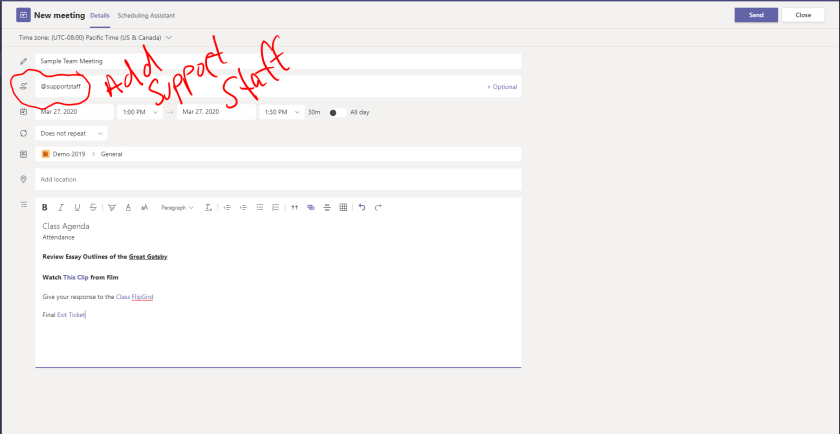
One way is providing real-time support in synchronous remote class sessions. Teachers can invite support staff into their classes on Microsoft Teams. Inviting staff into a channel meeting is easy. Add support staff to a scheduled meeting by adding them as an attendee.
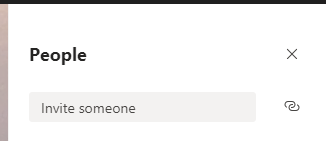
Or during a meeting you can invite support staff real-time by inviting them into the meeting. You can find this at the top of the participant dialogue in the meeting. 
Just type the individual’s name and it will call their Teams account. When they answer they will be in your class.
What can your support team do? Here are some ideas.
- Pin student screens and observe them in the meeting
- Have private chat to coach and provide support to individual students
- They can even call and have quick private conversations with students for support or interventions
- Administrators can conduct class observations, understand provide recommendations for improvement.
- Dean of Students can be quickly called for any discipline issues
Develop proactive student outreach
It’s often students who need the most support that aren’t receiving it. This can be even more true during remote learning. Microsoft Teams offers many approaches for support staff to reach out.
Schedule a Teams meeting with parent/guardians, students, teachers, administrators.
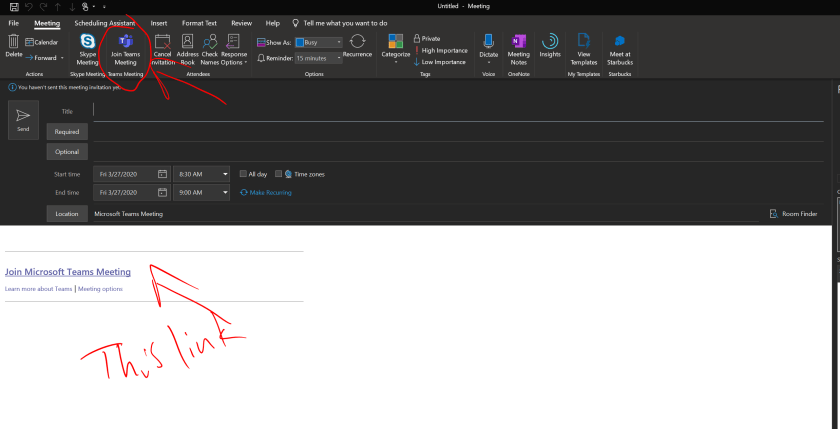
If you can email them, you can invite them to a teams meeting. Find the Teams Meeting icon in your Outlook Calendar, once you click it the Teams Meeting link will be added to the calendar invite. Even if the parent does not have a computer, there is a dial-in option to the meetings.
Proactively call students using Microsoft Teams
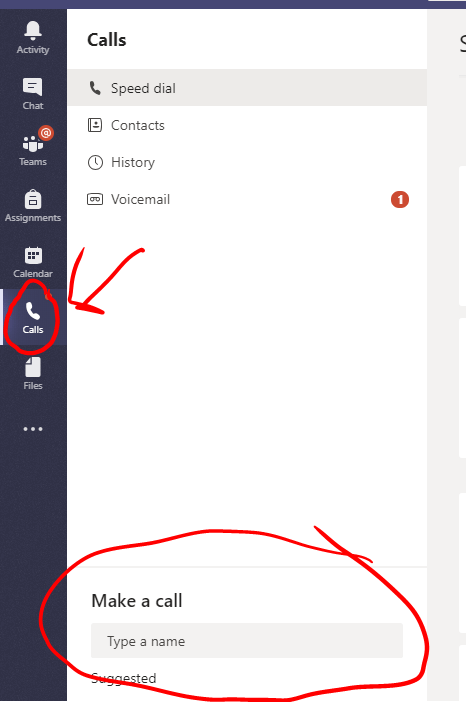
Support staff can make “the first move” by calling students and being proactive. Support staff can actively reach out to students and provide real-time support. They can reach students through the application on a computer or a cellphone.
Provide Technical Support
School Technology support teams can use Microsoft Teams to gain remote control of student devices during a Teams meeting. Technology staff can ask students to share their screen during a meeting. Once shared, technology staff can click the “request control” button. Students will get a prompt to allow the staff member to control their computer and address the issues they are experiencing.
Bringing it all together
Microsoft Teams is a platform that can help schools serve students and faculty well, even in a remote environment. So invite administrators to your class, ask counselors, para-educators, and interventionists to join the remote session! Administrators, continue to provide support and feedback through remote classroom observations. Deans – you can still address behavior problems in the remote classroom. Special educators – hold your interventions and connect with your students. Microsoft Teams connects the whole school to the child – use the tools!

 Digital Classroom Transformation